CCS - Claude Code Switch
One command, zero downtime, any provider
Switch between Claude, Codex, Kiro, GLM, Kimi, Ollama and more. Multiple accounts, multiple runtimes — no config thrash.
Created by @kaitranntt
Why CCS?
You're paying for multiple AI subscriptions — Claude Pro, ChatGPT Plus, Z.AI, Kimi, and more — and you want to drive them all from Claude Code CLI without rewriting config files every time you switch.
 Claude Pro
  ChatGPT Plus / Codex
  Z.AI / GLM
  Kimi
Kimi  MiniMax
  Alibaba Coding Plan
 Hit the cap mid-session and your context, progress, everything stalls.
New settings JSON, edit cliproxy config.yaml, restart Claude Code — every single time.
Separate auth tokens, config sections, and CLAUDE_CONFIG_DIR for account isolation.
Switch providers with ccs <profile> — no env vars, no config editing.
Hit a rate limit? Continue the same task in another provider with --resume.
OAuth tokens, account isolation, and runtime adapters handled for you.
npm install -g @kaitranntt/ccs && ccs configOpens the dashboard at http://localhost:3000 — add a provider there, then run ccs <profile> from terminal.
Want to learn more about resuming sessions across providers? See the Session Recovery Guide.
Key Features
What sets CCS apart from alternatives
One-Command Switching
Switch providers with named profiles — just ccs <provider>. No env vars, no config editing.
Session Recovery
Resume rate-limited sessions with a different provider. A rare capability across CLI tools.
Multi-Runtime
Bridges Claude Code, Codex CLI (transient credentials), and Factory Droid (multi-target adapter) — one tool, three runtimes.
WebSearch & Browser
Built-in WebSearch and browser automation provisioning for third-party providers.
OpenAI-Compatible Proxy
Local proxy with profile:model selectors and scenario-based routing for any OpenAI-compatible client.
20+ Providers, 3 Auth Tiers
14 CLIProxy OAuth providers, multi-account Claude, and BYO-key API profiles (Alibaba, MiniMax, Novita, Ollama, Llama.cpp).
Extended Thinking
Unified --thinking flag controls reasoning budgets (100K max) across Anthropic, Antigravity, Gemini hybrid, and Codex levels.
Account Safety
Cross-provider isolation, ban detection, and quota monitoring to protect Google accounts when running multiple OAuth providers.
Image & PDF Analysis
MCP-first vision support for third-party launches (GLM/Kimi/Qwen) that lack native image and PDF understanding.
Full Documentation
Dedicated docs site with product tour, CLI reference, and provider-specific guides.
Visual Dashboard
React 19 dashboard for auth monitoring, usage analytics, and profile management.
CCS Bar (Menu Bar)
Native macOS menu-bar app showing live subscription quota, reset countdowns, and 7/30-day spend at a glance — no dashboard needed. Talks only to localhost.
CLI Cheatsheet
@kaitranntt/ccs@8.4.0Comprehensive reference covering every public root command and subcommand. Grouped by purpose.
Synced 2026-06-18
Basics
7 commandsRoute Claude Code through a provider profile.
-
ccsDefault profile (Claude Pro/Max) -
ccs <profile>Run with any named profile -
ccs glmZ.AI / GLM (cheap coder) -
ccs kimiMoonshot Kimi (long context) -
ccs codexOpenAI Codex (Plus/Pro) -
ccs <profile> "<prompt>"One-shot prompt (no REPL) -
ccs setupFirst-time setup wizard
Profile Management
15 commandsCreate, list, and switch OAuth accounts and API-key profiles.
-
ccs auth create <profile>Create OAuth-based profile -
ccs auth listList concurrent Claude accounts -
ccs auth show <profile>Show details of an auth profile -
ccs auth default <profile>Set default account for a profile -
ccs auth reset-defaultReset default account for a profile -
ccs auth backupBackup current auth profiles -
ccs auth resourcesInspect profile resource files -
ccs auth remove <profile>Remove an auth profile -
ccs api create --preset <name>Create API-key profile (preset) -
ccs api listList configured API profiles -
ccs api discoverAuto-discover API profiles from env -
ccs api copy <name>Duplicate an existing API profile -
ccs api export <name>Export an API profile to a file -
ccs api import <file>Import an API profile from a file -
ccs api remove <name>Remove an API profile
Configuration
5 commandsOpen the dashboard and configure global settings.
-
ccs configOpen web dashboard in browser -
ccs config authConfigure dashboard HTTP Basic Auth -
ccs config channelsConfigure official channels (Telegram / Discord / iMessage) -
ccs config thinkingConfigure reasoning effort -
ccs config image-analysisConfigure MCP-based image analysis
CLIProxy
18 commandsManage CLIProxy variants, routing, quota, and local lifecycle.
-
ccs cliproxy createCreate a new CLIProxy variant -
ccs cliproxy editEdit a CLIProxy variant config -
ccs cliproxy listList CLIProxy variants -
ccs cliproxy default <variant>Set default CLIProxy variant -
ccs cliproxy routingInspect or edit model routing rules -
ccs cliproxy catalogShow CLIProxy model catalog -
ccs cliproxy syncSync CLIProxy config to disk -
ccs cliproxy quotaInspect provider quota usage -
ccs cliproxy startStart CLIProxy instance -
ccs cliproxy restartRestart CLIProxy instance -
ccs cliproxy stopStop CLIProxy instance -
ccs cliproxy statusShow CLIProxy status -
ccs cliproxy doctorDiagnose CLIProxy health -
ccs cliproxy pausePause CLIProxy without stopping -
ccs cliproxy resumeResume a paused CLIProxy -
ccs cliproxy pool --enableToggle account-pool routing (fill-first + affinity + cooling) -
ccs cliproxy accounts order <provider>Set managed drain order for a provider’s accounts -
ccs cliproxy removeRemove a CLIProxy variant
Operations
14 commandsHealth checks, lifecycle, tokens, and meta commands.
-
ccs doctorHealth check (auth + tokens + paths) -
ccs persistLock current profile to ~/.claude -
ccs migrateMigrate from older configs -
ccs cleanupRemove unused profiles + caches -
ccs updateUpdate CCS to latest version -
ccs syncSync delegation commands and skills -
ccs env <profile>Export profile env for third-party tools -
ccs tokensManage CLIProxy auth tokens -
ccs proxy startStart OpenAI-compatible local proxy -
ccs proxy stopStop local proxy daemon -
ccs proxy statusShow local proxy status -
ccs proxy activateActivate proxy for current shell -
ccs help <topic>Show help for a topic (profiles, providers, targets…) -
ccs --versionShow installed CCS version
Runtime Targets
12 commandsSend a profile to a different agent runtime.
-
ccs --target droid <profile>Route profile to Factory Droid runtime -
ccs --target codex <profile>Route profile to Codex runtime -
ccs --target claude <profile>Force Claude target (default) -
ccs-droid <profile>Factory Droid wrapper -
ccsd <profile>Short alias for ccs-droid -
ccs-codex <profile>Native Codex CLI wrapper -
ccsx <profile>Short alias for ccs-codex -
ccsxp <profile>Codex-on-Codex shortcut -
ccs browserClaude Browser Attach + Codex Browser Tools -
ccs cursorCursor IDE integration -
ccs copilotGitHub Copilot bridge (deprecated) -
ccs help completionShell completion install & testing
Docker
8 commandsRun CCS inside a sandboxed container.
-
ccs docker upStart CCS container -
ccs docker downStop CCS container -
ccs docker statusShow container status -
ccs docker logsTail container logs -
ccs docker updateUpdate Docker stack image -
ccs docker configInspect or edit Docker stack config -
ccs docker show-keyShow current Docker API key (8.1.0+) -
ccs docker finalize-key-rotationFinalize Docker key rotation (8.1.0+)
Menu Bar App
7 commandsNative macOS menu-bar app for live quota & spend (macOS only, 8.3.0+).
-
ccs bar installDownload & install CCS Bar.app into ~/Applications -
ccs barLaunch the app, reusing or starting the local server -
ccs bar serveRun the web-server in the foreground (advanced) -
ccs bar statusReport whether the background server is running -
ccs bar stopStop the background server -
ccs bar versionShow the installed CCS Bar version -
ccs bar uninstallRemove CCS Bar.app and the version pin
Run any command with --help for full options. For detailed setup of a specific profile (Claude / Codex / GLM / Kimi / Gemini …), see the Provider Decision Tree below. Full docs at docs.ccs.kaitran.ca.
Configure Your Providers
Choose how you want to set up your AI providers. Pick the method that works best for you.
Provider Decision Tree
Select the provider whose subscription you want to use in Claude Code CLI.
This decision tree is for Claude Code CLI usage only. Web app and desktop app users do not need CCS.
CCS lets you switch between provider subscriptions directly in Claude Code CLI. Pick your provider below to see the exact env vars and config needed.
Coming soon...
Click any provider node to see config. Wheel to zoom, drag to pan.
Web Dashboard
NewCCS ships a routed React 19 dashboard organized into workspaces — not a single settings modal. Each workspace targets a specific orchestration concern.
Profiles
Create API profiles for OpenRouter, Alibaba Coding Plan, local runtimes, or custom endpoints.
CLIProxy Plus
Connect OAuth providers, inspect provider status, and tune routing for the local proxy.
Accounts
Create named auth accounts, copy safe commands, and manage shared or isolated context lanes.
Analytics
Read usage by time range so non-technical readers can spot spikes and provider mix quickly.
Health
Run the same checks as ccs doctor and see what needs attention before starting work.
Settings
Configure search, browser, image, proxy, auth, backup, env, and thinking behavior in one place.
Launch Dashboard
Open dashboard (auto-opens browser)
ccs config Specify custom port
ccs config --port 3000 The dashboard will automatically open in your browser. If not, access it manually at http://localhost:PORT
Beginner setup path
Open the local app
ccs config Start with the dashboard instead of editing YAML by hand.
Pick an API profile lane
/providers Use Profiles for OpenRouter, Alibaba Coding Plan, local models, and custom OpenAI-compatible endpoints.
Connect OAuth providers
/cliproxy Use CLIProxy for Gemini, Codex, Antigravity, Qwen, Claude, Kimi, and related OAuth-backed providers.
Verify before coding
/health Open Health for checks, then Logs when a request fails or a provider returns 404, 429, or 503.
Where to go in the dashboard
Home
/ Quick status cards, account monitor, request distribution, and a shortcut to the dedicated Logs workspace.
Analytics
/analytics Track token usage, cache cost, model spend, sampled sessions, and time ranges like 24H, 7D, Month, or All Time.
Profiles
/providers Best first stop for API-key providers and custom endpoints. Create, import, or discover API profiles here.
CLIProxy Overview
/cliproxy See OAuth provider connection status, quick setup, provider cards, routing mode, session affinity, and model presets.
AI Providers
/cliproxy/ai-providers Configure CLIProxy Plus provider families, hybrid/API-key connectors, routing behavior, and proxy sync state.
Control Panel
/cliproxy/control-panel Use when you need proxy lifecycle controls or operational actions around the local CLIProxy service.
Accounts
/accounts Create auth accounts, manage shared resources, and choose whether an account keeps isolated or shared context.
Shared Resources
/shared Inspect commands, skills, agents, plugins, settings, and resource policies inherited by shared accounts.
Claude Extension
/claude-extension Save IDE bindings, verify drift, and apply or reset shared Claude settings plus IDE-local settings.
Codex CLI
/codex Check detected Codex install, aliases, cliproxy shortcuts, config.toml path, and raw native Codex config.
Factory Droid
/droid Review and edit Droid BYOK settings in ~/.factory/settings.json, including custom models and defaults.
GitHub Copilot
/copilot Deprecated compatibility bridge for Copilot model mappings and daemon setup. Prefer newer CLIProxy paths when possible.
Cursor IDE
/legacy/cursor Legacy Cursor bridge for old local daemon flows. New setups should use CLIProxy-backed Cursor auth.
Health
/health Run ccs doctor checks across system, environment, config, delegation, OAuth readiness, and WebSearch.
Logs
/logs Filter live activity, entries, traces, errors, request IDs, JSON payloads, and source-level request details.
Settings
/settings Configure search backends, browser/image tools, channels, env, thinking, proxy, auth, backup, and raw config.yaml.
Dashboard Preview
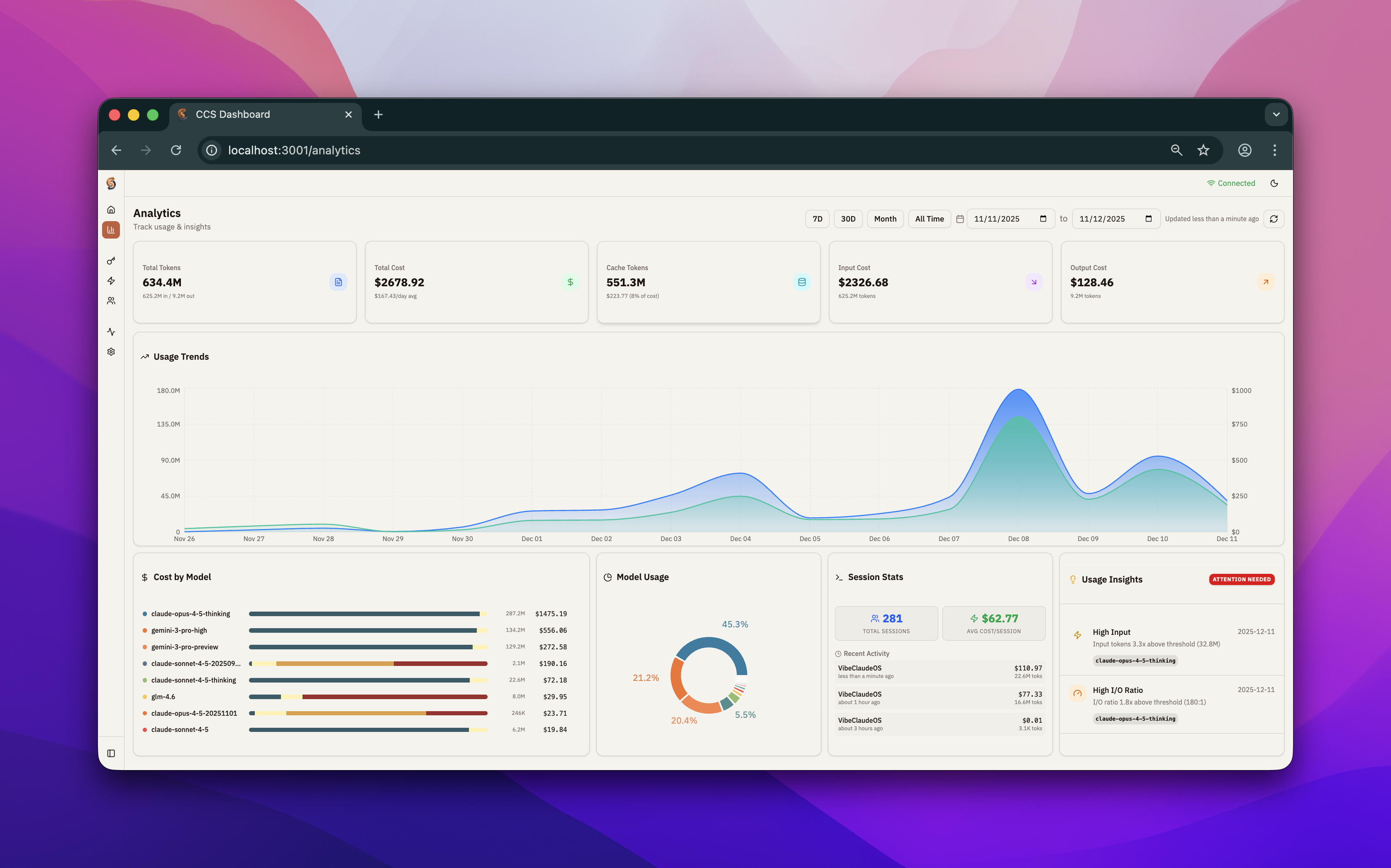
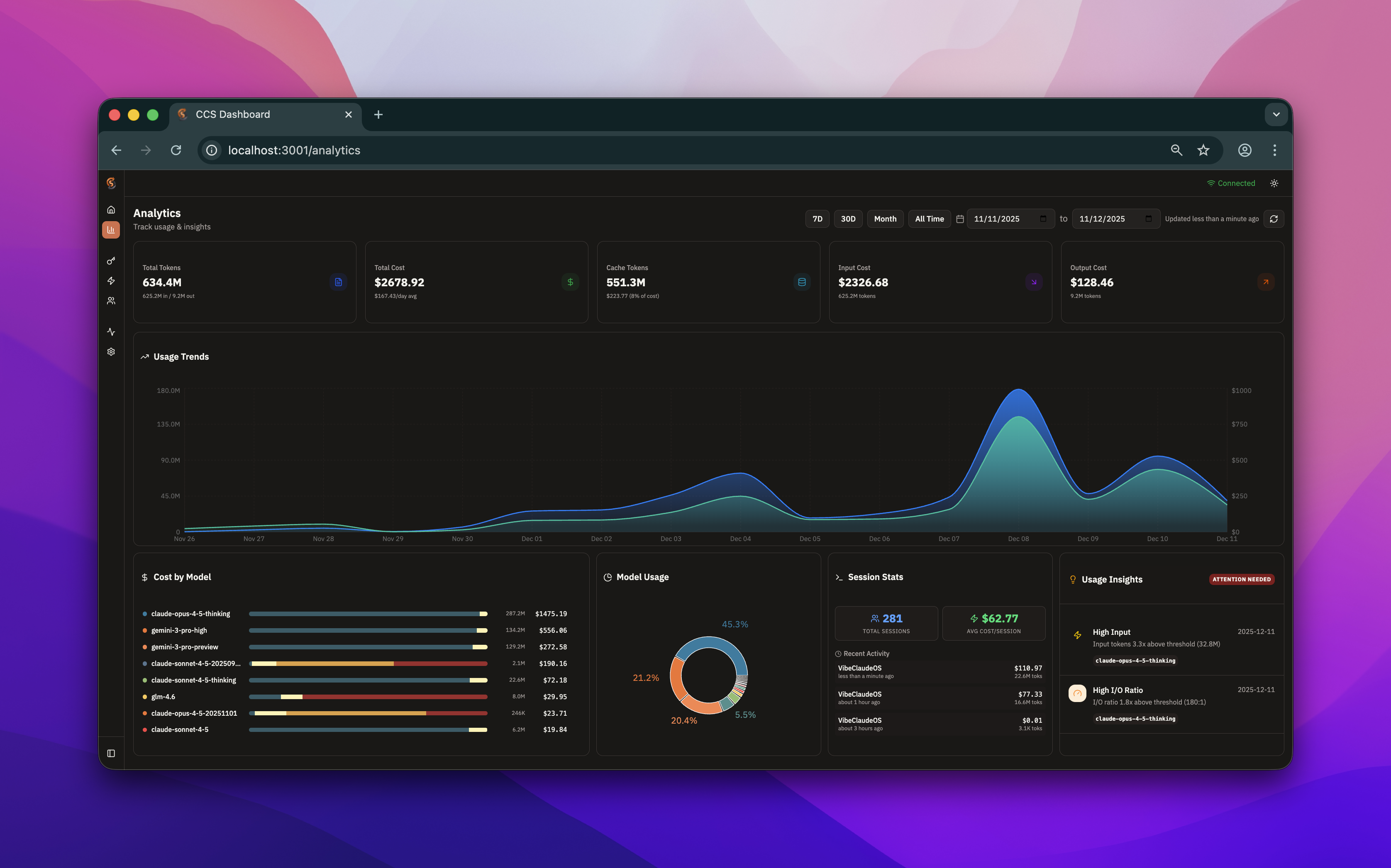
Plain-English rule
If you pay for an API key, start in Profiles. If you log in through a provider account, start in CLIProxy or Accounts. If something breaks, go to Health first, then Logs.
Local and inspectable
The dashboard runs on localhost and keeps data on your machine. Sensitive values stay hidden until you explicitly reveal them.
The sidebar groups pages into General (Home, Analytics), Identity & Access (Profiles, CLIProxy, Accounts), Compatible CLIs (Claude Extension, Codex CLI, Factory Droid), Deprecated integrations, and System (Health, Logs, Settings).
Best workflows with CCS & ClaudeKit
Curated recipes for routing tasks across providers and runtimes — optimize for cost, depth, or context.
Cost-optimized full cycle
When you want quality planning + review but cheap bulk implementation.
$ ccs "/ck:plan add payment integration" $ ccs glm "/ck:cook implement Stripe payment flow" $ ccs glm "/ck:test run payment tests" $ ccs "/ck:code-review check payment implementation" Deep debugging with thinking models
When a flaky test or subtle bug needs careful reasoning across files.
$ ccsx codex "$ck:debug investigate flaky webhook test" $ ccs "/ck:scout cross-reference call sites" $ ccs glm "/ck:fix apply patch + rerun tests" Multi-runtime routing
When you want to combine Claude Code, Codex, and Droid in one task.
$ ccs "/ck:plan refactor auth module" $ ccsx codex "$ck:cook scaffold module" $ ccsd glm "/ck:test run integration suite" $ ccs "/ck:code-review final pass" Mix providers per step: use a strong reasoning model (Claude / Codex) for planning & review, a cheaper coder (GLM / Qwen) for bulk implementation & tests. Switch runtimes (ccsd, ccsx) when you need a different agent.